Cyber Essentials v3.3 and device unlock: what the scheme expects
Device unlock under v3.3: screen lock timers, biometric unlock, passcode complexity, and the specific rules for iOS, Android, Windows, and macOS that assessors now check.
Section 01
Cyber Essentials v3.3 and device unlock: what the scheme expects
Screen lock and device unlock fall under secure configuration in Cyber Essentials. v3.3 tightened the rules for what constitutes an acceptable unlock method. Most changes affect mobile devices, BYOD, and consumer Windows machines.
This article walks through the rules by platform.
Section 02
The general rule
Every device in scope must require authentication to unlock. The authentication must be:
- Non-default (factory passcode changed).
- Auto-engaged after a period of inactivity.
- Not trivially bypassable.
Different platforms meet this differently.
Section 03
Windows
- Screen lock after 15 minutes of inactivity (Group Policy or Intune).
- Unlock requires password, PIN, Windows Hello biometric, or Windows Hello PIN.
- Windows Hello for Business PIN minimum 6 digits.
- Consumer-style "no password on consumer Windows" does not pass.
Section 04
macOS
- Require password after sleep or screen saver: immediately or after 5 minutes.
- Password complexity: 8+ characters, mixed case, numbers.
- FileVault enabled.
- Touch ID acceptable for desktop unlock.
Section 05
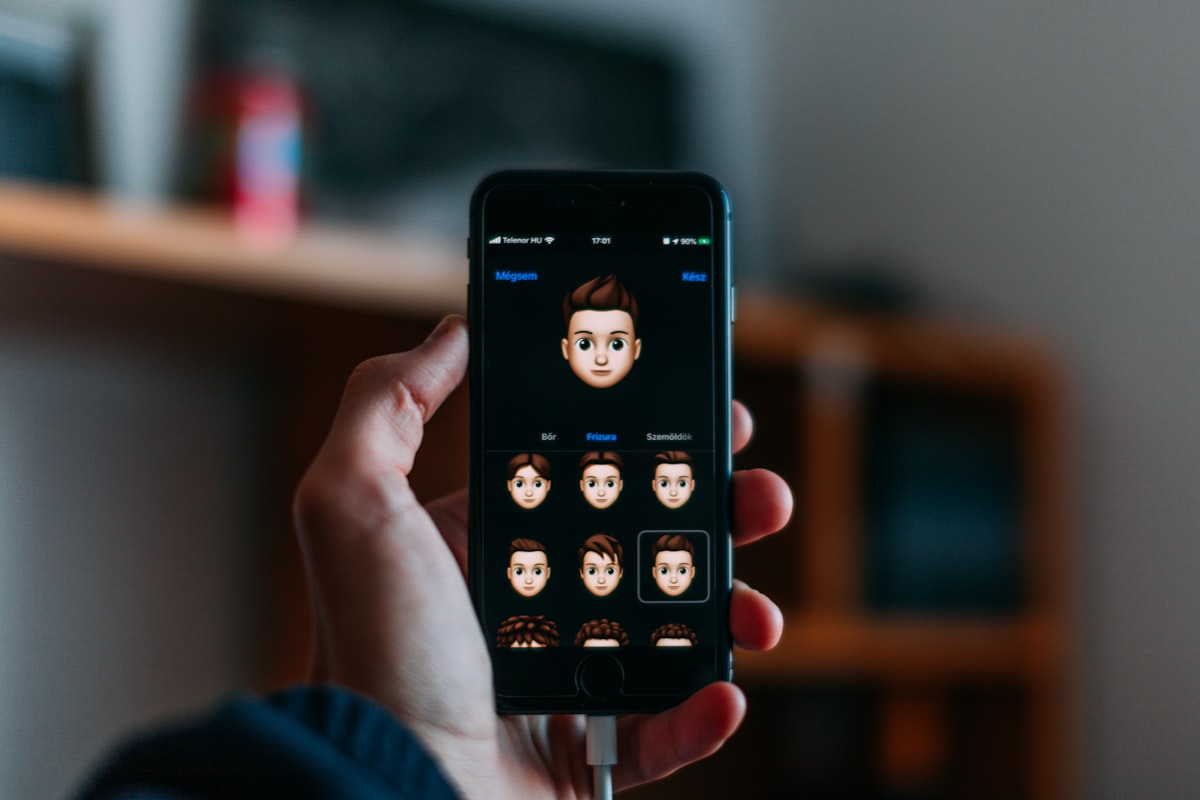
iOS
- Passcode required: yes.
- Passcode complexity: 6-digit numeric minimum, alphanumeric preferred.
- Auto-lock: 2 minutes or less.
- Face ID / Touch ID acceptable for unlock (backed by passcode).
- Device encryption: automatic on modern iOS.
v3.3 no longer accepts 4-digit passcodes on iOS for in-scope devices. Change the minimum to 6 digits via MDM (Intune, Jamf).
Section 06
Android
- Screen lock: PIN, pattern, password, or biometric.
- Pattern and 4-digit PIN are borderline - assessors may ask for 6-digit PIN minimum.
- Biometric acceptable (backed by PIN).
- Device encryption: required (automatic on Android 10+).
- Auto-lock: 2 minutes or less.
Some MDM policies enforce 6-digit PIN as a technical control. Recommended.
Section 07
Home routers (under v3.3)
v3.3 (Danzell A2.5) is unambiguous: normal home routers used by remote workers are explicitly out of scope. The Danzell text is "Details of routers and firewalls in the home environment must not be included." The boundary follows the device that touches organisational data, not the home network.
What this means for device unlock and posture:
- The remote-worker laptop's software firewall must be enabled, default-deny on inbound, and configured so a standard user cannot disable it.
- The MDM posture (Intune, Jamf, Conditional Access) covers the device wherever it is.
- Home router admin passwords, firmware, and WAN configuration are not part of the assessment.
Where the firm supplies a corporate router as managed kit, that router is in scope as corporate equipment - but the typical home-worker scenario (worker uses their own ISP-provided router) is excluded.
Section 08
BYOD devices
For in-scope BYOD devices:
- Personal iOS / Android devices accessing organisational data must enrol in MDM.
- MDM enforces passcode complexity per the rules above.
- "We told users to use a passcode" without technical enforcement is a fail.
Section 09
Kiosk / shared devices
Shared devices (training rooms, point-of-sale terminals, reception kiosks) are allowed but must:
- Auto-lock between users.
- Clear session data between users.
- Have a unique per-user PIN or sign-in where practical.
Section 10
What the assessor checks
During the self-assessment:
- Screenshots of MDM policies for iOS, Android, Windows.
- Screenshot of Group Policy or Intune showing screen lock after 15 minutes on Windows.
- Evidence that Face ID / Touch ID is enforced backed by 6-digit passcode.
- Evidence that remote-worker laptops have their software firewall enabled and configured (Defender Firewall settings, macOS Firewall pane, MDM-applied firewall policy). Home routers themselves are out of scope under Danzell A2.5; no router-side evidence is required.
For CE Plus, the assessor samples devices live - they will ask the user to show screen lock configuration directly.
Section 11
Common failures
- 4-digit PIN on iOS - upgrade to 6 digits via MDM.
- No screen-lock timer on personal Windows - deploy via Intune or Group Policy.
- Screen lock at 30 minutes or longer - reduce to 15 minutes.
- No auto-lock on Android in MDM - configure it.
Section 12
Bottom line
Device unlock is a low-drama CE control if you have MDM. Configure 6-digit minimum PINs, biometric backed by passcode, 15-minute screen lock, and device encryption. v3.3 tightens the thresholds but the controls have not fundamentally changed.
Start Cyber Essentials | See the 14-day patching rule | See pricing
About the author

Jay Hopkins
Managing Director, Fig Group
Jay Hopkins is the Managing Director of Fig Group and an IASME-licensed Cyber Essentials assessor. He was previously Head of Technology for a global regulated firm. He works with UK organisations across regulated sectors on baseline compliance, supply-chain assurance, and AI-augmented security tooling.
Next step
Want to see how Fig handles this?
Discover how Fig helps organisations prepare for security assessments and maintain ongoing compliance.
Request a demoRelated guides
Continue reading
Technical Guides
Cyber Essentials for Microsoft Intune: configuration guide
How to configure Microsoft Intune to satisfy Cyber Essentials v3.3 on Windows, macOS, iOS, and Android devices - baselines, compliance policies, app protection, and update rings.
Read article
Technical Guides
Secure Configuration for Cyber Essentials: The Controls Assessors Expect to See
Secure configuration is the control area with the broadest scope and the most room for getting details wrong. This guide covers default passwords, auto-run, unnecessary software, cloud service configuration, and the specific settings assessors check against v3.3 (effective 27 April 2026).
Read article
Technical Guides
Cyber Essentials for Microsoft Azure: configuration guide
Exactly what assessors check on Azure tenants for Cyber Essentials v3.3 - Entra ID policies, Conditional Access, Secure Score, firewall rules, and the evidence that passes first time.
Read article